¶ Payment Reconciliation
Usage: This screen is intended to match (or settle) a financial payment to a related invoice (or multiple invoices).
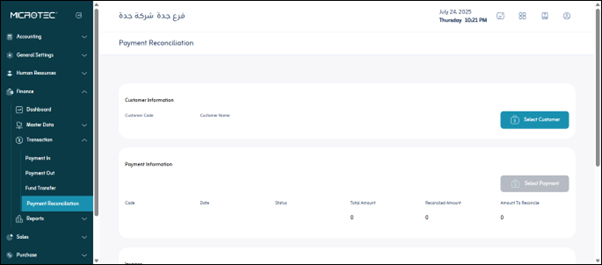
¶ Payment and Customer/Vendor Selection Elements
- Select Customer:
This field allows you to select the customer for whom you want to settle a payment. Once you select a customer, only the invoices and payments related to that customer will be displayed.
(Note: If the screen is also used to settle payments to suppliers, there will likely be a “Select Supplier” option, or the screen will adapt based on the type of payment selected.) - Select Payment:
From this field, you select the specific payment (whether a customer receipt or a supplier disbursement note) you want to settle.
Once you select the payment, the amount of that payment will be displayed to begin the process of matching it with the invoices.
¶ Invoices Section
This section displays a list of outstanding or partially paid invoices for the selected customer/vendor, to which the payment can be linked.
- Automatic Allocation (Old to New):
This button or option allows the system to automatically match the available amount of the payment with the outstanding invoices, typically starting with the oldest invoice (to ensure that the oldest debts are paid first).
This saves time and reduces manual errors in the reconciliation process. - Search:
A search field within the Invoices section allows you to search for a specific invoice (for example, by its number) within the list of displayed invoices.
¶ Invoice Details Table (when viewed)
This table displays the following information for each invoice:
- Invoice Code: The invoice’s identification number or code.
- Invoice Date: The invoice’s issue date.
- Invoice Status: The current status of the invoice (for example, due, partially paid, fully paid).
- Total Amount: The total value of the invoice.
- Matched Amount: The portion of the invoice that has already been settled or paid.
- Amount to Match: This is the most important field on the screen. It is an editable (manually entered) field that allows you to specify the amount you want to allocate from the current payment to this particular invoice. You must ensure that the sum of the amounts in this field across all invoices does not exceed the total payment amount you selected above.
- Actions: For actions specific to each invoice in the reconciliation process, such as removing the invoice from the reconciliation list or viewing its details.
Save: A button to save the reconciliation process. When clicked, the system will update the selected invoice balances, reduce the remaining payment amount (if any), and update the customer/supplier balance.